
Why Choose Solflare as Your Solana Wallet?
Choosing a Solana wallet when you're new to the ecosystem can be daunting. Solflare stands out as a popular recommendation because it balances ease of use with a solid feature set.
New users appreciate Solflare's clean and intuitive interface, which simplifies sending, receiving, and managing Solana (SOL) and other tokens. It prioritizes a smooth core experience without sacrificing essential features.
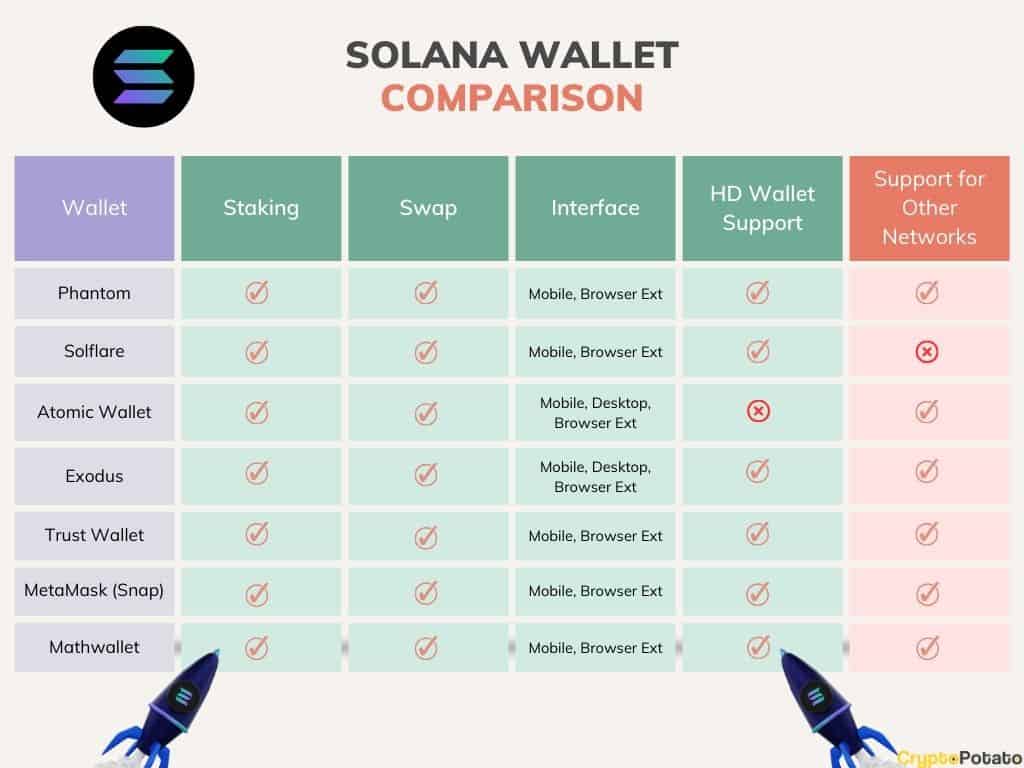
Solflare also emphasizes security. It's a non-custodial wallet, meaning you control your private keys. It supports hardware wallets like Ledger and Trezor for enhanced protection. Solflare also lets you manage NFTs, participate in staking, and swap tokens directly within the wallet.
Solflare's combination of usability, security, and features makes it an excellent starting point for exploring the Solana blockchain. It's a solid option that won't leave beginners feeling lost.
New to Solflare Wallet?
— Emmanuel Maduabuchi (@TheEmma101) April 12, 2026
Here's how to navigate it without hassle.
Solflare is a non-custodial crypto wallet built for the Solana blockchain.
With Solflare, you can:
1. Store crypto (especially SOL).
2. Send & receive money.
3. Connect to Web3 apps.
4. Swap tokens and even… pic.twitter.com/ObxIKmYSUJ
Downloading and Installing Solflare: A Step-by-Step Guide
Setting up Solflare is straightforward. The process is similar across browsers. Go to the official Solflare website at solflare.com to download the extension for Chrome, Firefox, and Brave. Always download from the official site to avoid security risks.
For Chrome, Brave, and Edge, click the “Get extension” button on the Solflare site. This leads to the Chrome Web Store. Click “Add to Chrome” and confirm. The Solflare icon will appear in your browser's toolbar.
For Firefox, click the “Get extension” button on the Solflare website. This directs you to the Firefox Add-ons store. Click “Add to Firefox” and confirm. The Solflare icon will appear in your browser's toolbar.
Solflare also has mobile apps for iOS and Android. While this guide focuses on the browser extension, the mobile app provides convenient access on the go. Search for “Solflare Wallet” in your app store.
Creating a New Solana Wallet: Security First
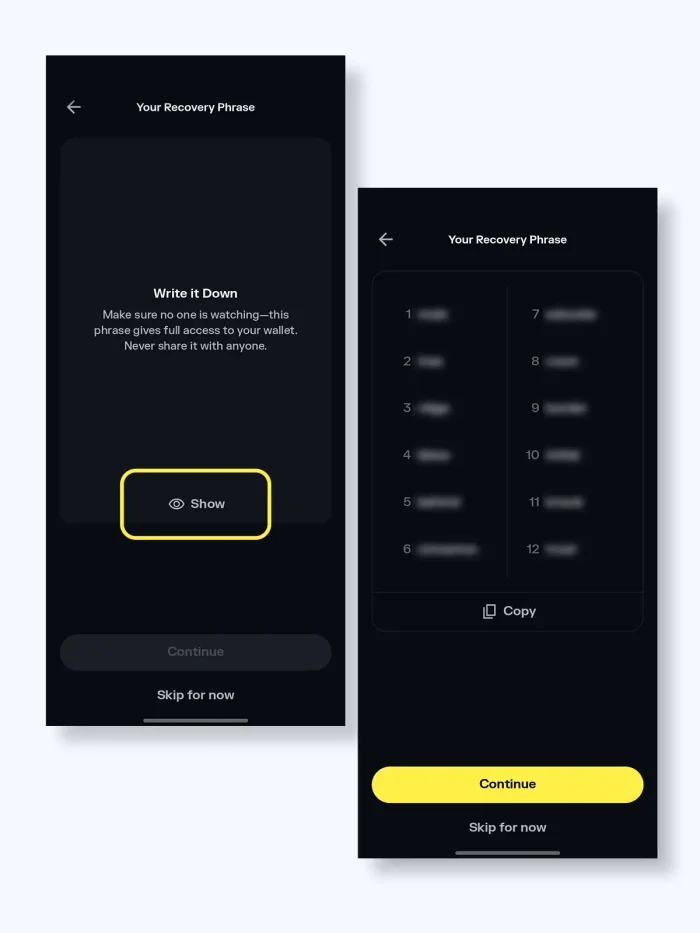
After installing Solflare, create a new wallet. Open the extension and select “Create New Wallet.” You will then see your seed phrase.
Your seed phrase, a 12 or 24-word phrase, is the only way to recover your wallet. Never share your seed phrase with anyone, and do not store it digitally. Write it down on paper and keep it in a secure, offline location.
Solflare will ask you to verify your seed phrase. After verification, you can add a passphrase for an extra layer of security, protecting your wallet even if your seed phrase is compromised.
Losing your seed phrase means losing access to your funds permanently. Anyone with your seed phrase can steal your funds. Protect it carefully.
- Write down your seed phrase on paper.
- Store the paper in a secure, offline location.
- Never share your seed phrase with anyone.
- Consider using a passphrase for extra security.
Understanding Solflare's Interface: A Quick Tour
Solflare's interface is intuitive. The top navigation includes sections for “Balance” (your SOL and token holdings) and “Transactions” (your wallet activity history).
The “Swap” section lets you exchange tokens directly within the wallet. “Staking” allows participation in Solana staking to earn rewards, though this is more advanced and requires research.
The “NFTs” section displays your digital collectibles. “Settings” lets you customize your wallet, manage security, and access help.
Start by familiarizing yourself with the “Balance” and “Transactions” sections for sending and receiving SOL. Explore other features as you become comfortable with the Solana ecosystem. Solflare’s documentation is available if you need assistance.
Funding Your Wallet: Buying Solana (SOL)
To get started, you'll need to fund your wallet with SOL. You can do this through a centralized exchange (CEX) like Coinbase, Binance, or Kraken, which are beginner-friendly.
On a CEX, create an account, complete verification, and buy SOL. Then, withdraw it to your Solflare wallet. Be extremely careful to select the Solana Mainnet when withdrawing.
Decentralized exchanges (DEXs) like Raydium allow direct token trading without an intermediary, offering more privacy and control but requiring more technical knowledge. You'll typically connect your Solflare wallet to the DEX.
Regardless of the method, always double-check the withdrawal address in your Solflare wallet before sending funds. A mistake can lead to lost SOL.
Sending and Receiving Solana: Your First Transaction
To send SOL, click “Send” in Solflare, enter the recipient’s Solana address and the amount. You will pay a small transaction fee based on network congestion.
To receive SOL, click “Receive.” Solflare will generate a Solana address for you to share. Always double-check the address before sending or receiving to avoid lost funds.
After initiating a transaction, you'll see a unique transaction signature. Use this to track the transaction status on a Solana explorer like solscan.io. The SOL will appear in your wallet once confirmed.
For your first transaction, start with a small amount to familiarize yourself with the process. Solana transactions are generally fast and inexpensive.utious.
Exploring Solflare's Additional Features
Solflare offers more than just basic SOL management. The wallet supports a wide range of Solana tokens, allowing you to store and manage your entire Solana portfolio in one place. It also has built-in NFT support, allowing you to view and manage your digital collectibles directly within the wallet.
The staking feature allows you to participate in Solana’s proof-of-stake consensus mechanism, earning rewards for validating the network. This is a more advanced feature that requires some research, but it can be a good way to earn passive income. The swap function lets you quickly exchange one Solana token for another.
Solflare recently launched a new feature called Magic AI Assistant, designed to help users navigate the Solana ecosystem. The availability and functionality of this feature may change, so check the Solflare website for the latest information. You can find detailed documentation and tutorials on all of these features on the Solflare website.
While this guide provides a good overview of Solflare’s core features, it’s just the beginning. The Solana ecosystem is constantly evolving, and Solflare is continually adding new features and improvements. I recommend regularly checking their website and social media channels to stay up-to-date.
No comments yet. Be the first to share your thoughts!